Thursday, March 24, 2011

MY PREFFERED OS

INSTALL OR FORMAT WINDOWS 7

First, insert your Windows 7 Boot Disk into your dvd drive and reboot your PC
While the PC is rebooting, you will be prompted ” Press any key to boot from CD…” Just press ENTER
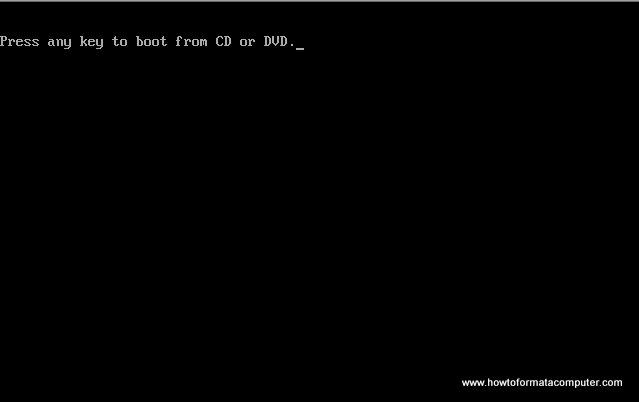

Install Windows 7 - Press any key
After you press a key, windows will load installation files.
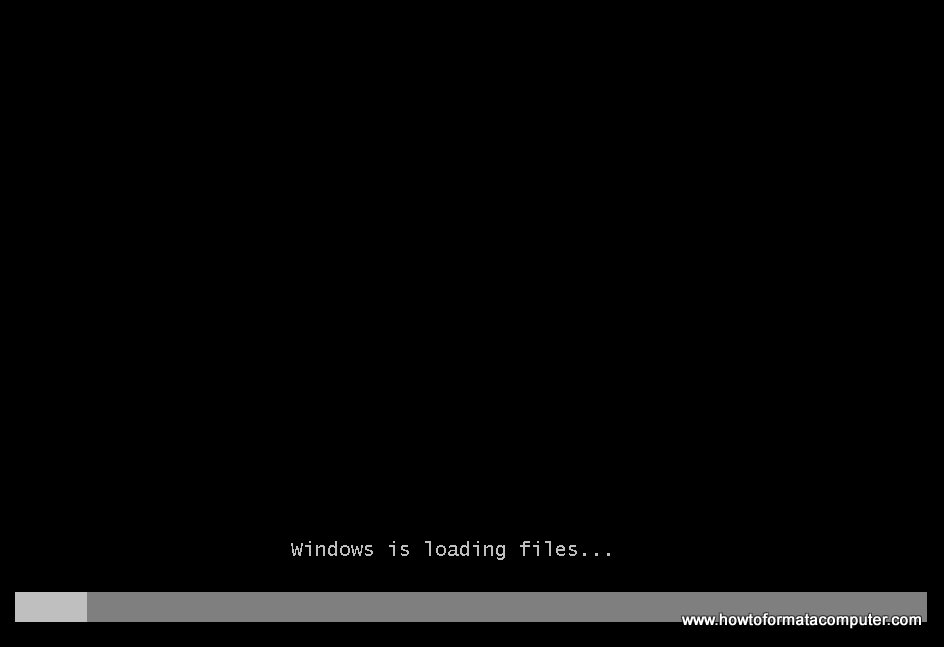
Install Windows 7 - Windows is loading files

Install Windows 7 - Windows is loading files
Windows 7 setup will start
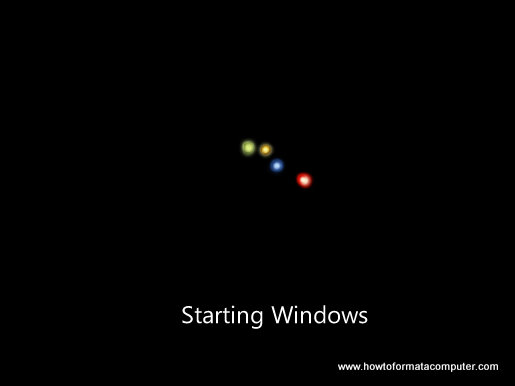
Install Windows 7 - Starting Windows Setup

Install Windows 7 - Starting Windows Setup
 Select your language, time and currency format and keyboard input (US)
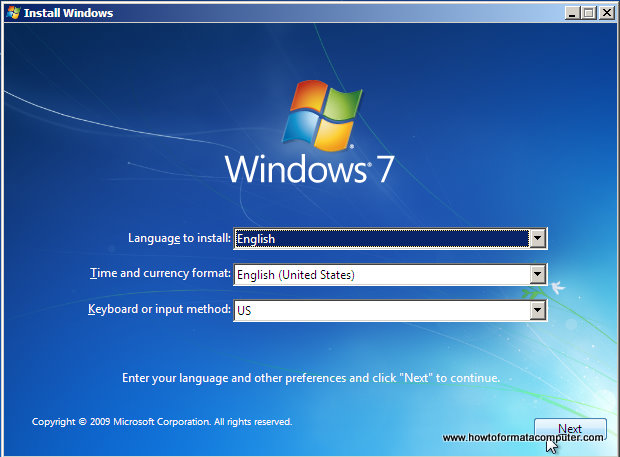
Install Windows 7 - First Setup Screen, input language, time and currency format and keyboard input method

Install Windows 7 - First Setup Screen, input language, time and currency format and keyboard input method
Click Install Now to proceed
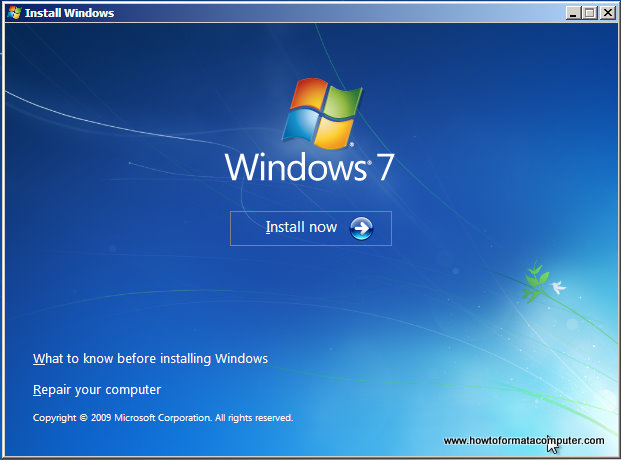
Install Windows 7 - Install Now Screen

Install Windows 7 - Install Now Screen
Setup will load for a min or two
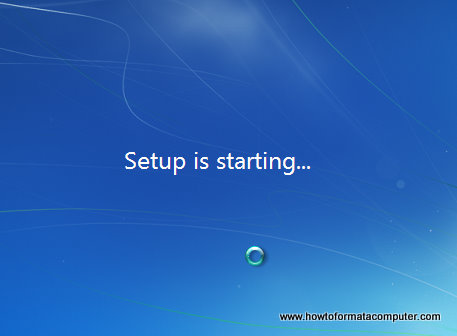
Install Windows 7 - Setup is starting

Install Windows 7 - Setup is starting
If you do, select I accept the license terms and click Next
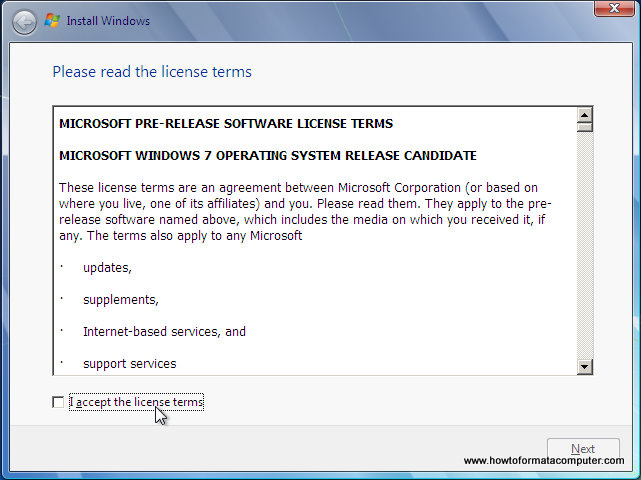
Install Windows 7 - License Terms

Install Windows 7 - License Terms
If you are upgrading from Windows Vista select Upgrade, if you had Windows XP you have to select Custom (Advanced). Upgrade from Windows XP to Windows 7 is not available. Click Custom (Advanced)
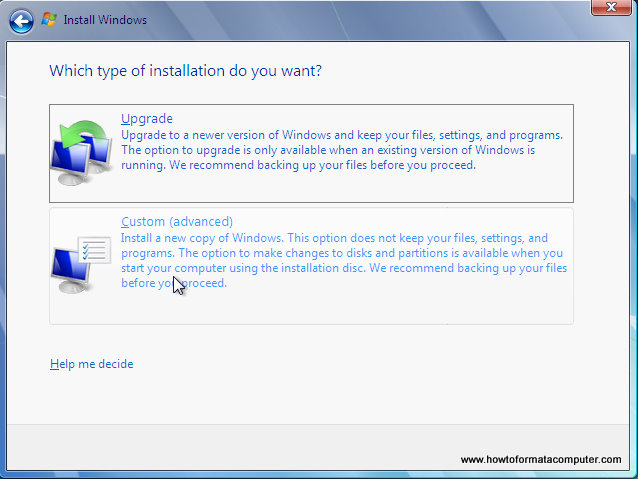
Install Windows 7 - Custom Install

Install Windows 7 - Custom Install
Select the Partition where you want to install Windows 7 and click Next. You will need at least 5716mb free space.
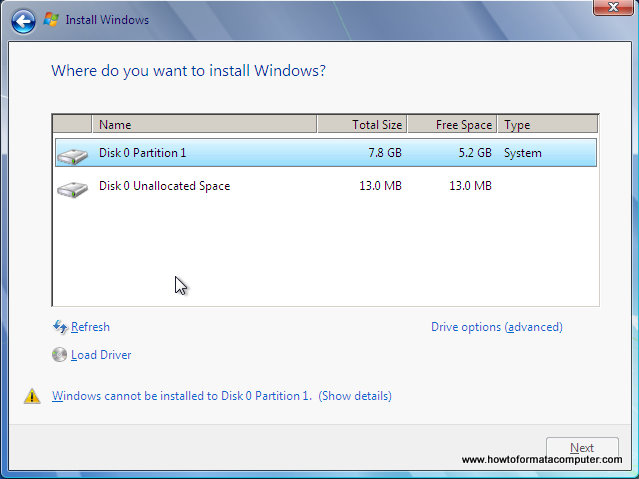
Install Windows 7 - Where do you want to install windows

Install Windows 7 - Where do you want to install windows
If you don’t have enough free space to Install Windows 7, you will receive the following warning
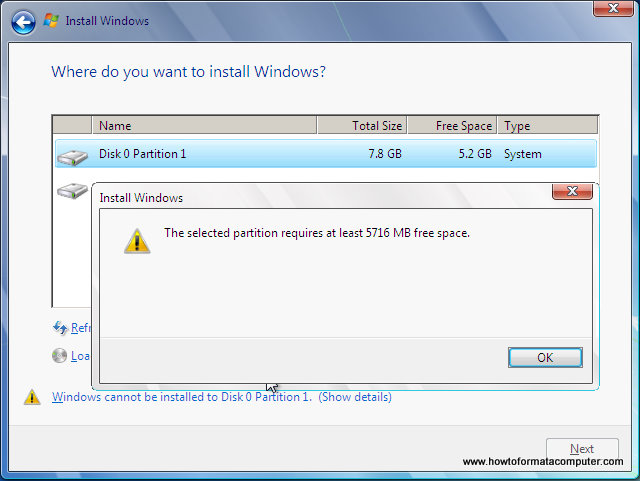
Install Windows 7 - Not enough disk space warning message will appear

Install Windows 7 - Not enough disk space warning message will appear
If that’s the case, you will need to format the partition where you previously had Operating System installed.
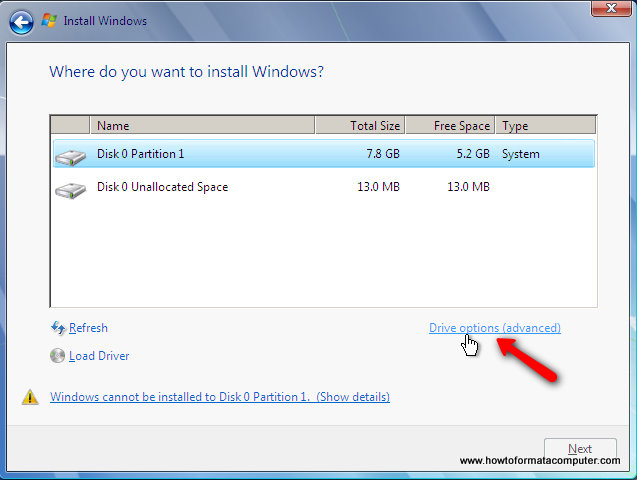
Install Windows 7 - Drive Options

Install Windows 7 - Drive Options
and format the partition where you want to install windows 7. Again, do this only if you have backed up your documents/files!
click format and then yes
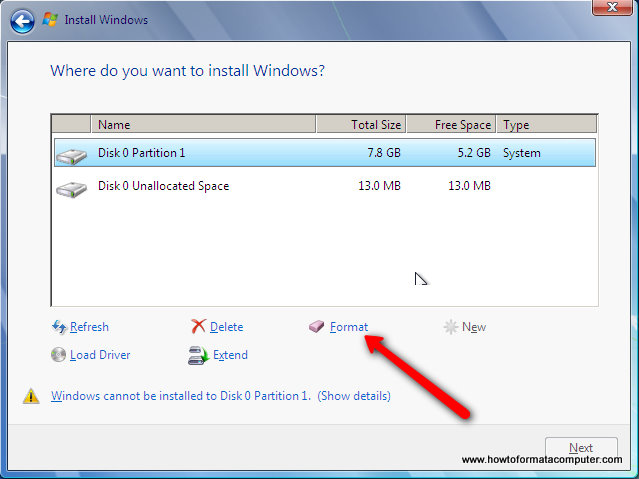
Install Windows 7 - Format Windows 7 Install Partition

Install Windows 7 - Format Windows 7 Install Partition
After you press Next, Windows 7 Installation will begin. Approximately takes about 30 min to 1 hour to finish, depending on your computer speed.
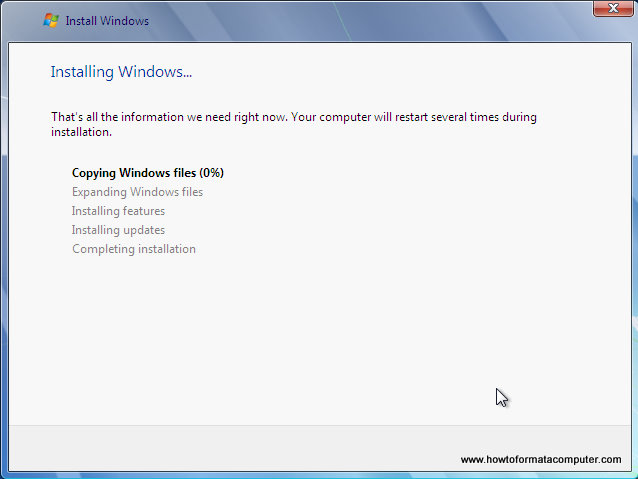
Install Windows 7 - Setup running

Install Windows 7 - Setup running
After half an hour, setup is complete and windows 7 installation is almost finished. Few more minutes
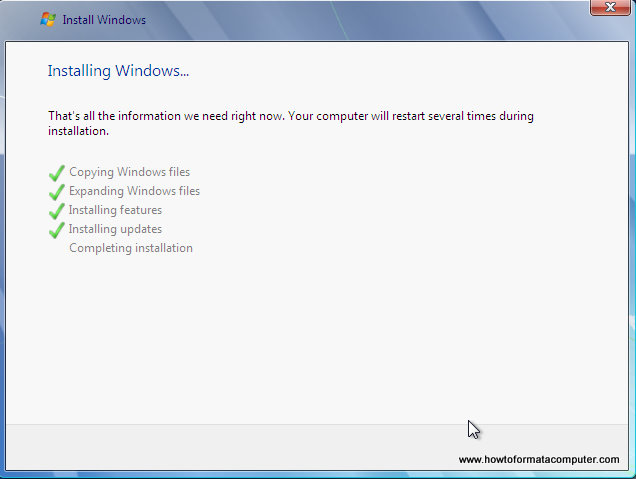
Install Windows 7 - Setup Complete

Install Windows 7 - Setup Complete
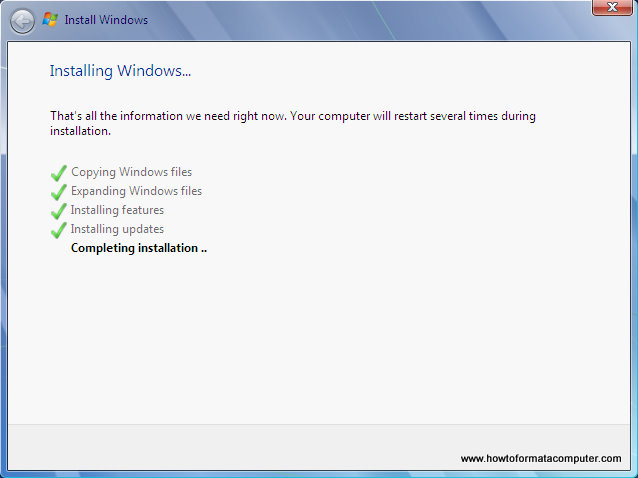
Now your computer will reboot, since the Windows 7 DVD boot disk is still in the drive, the message press any key to boot from DVD will appear. We already did that, so this time DO NOT press anything. Just wait 5 sec and your PC will continue booting and finish installing your operating system.
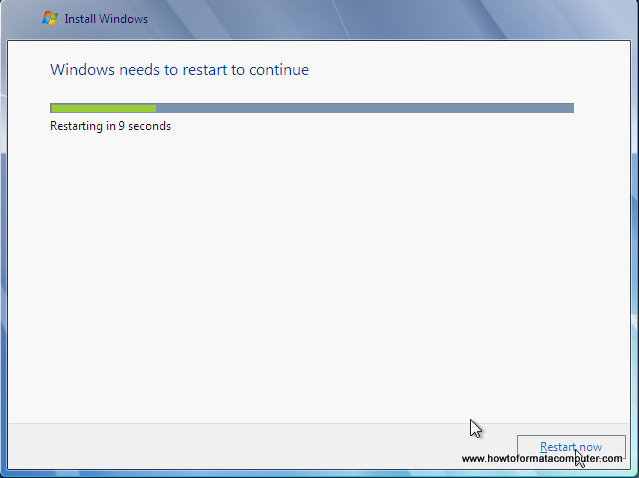
Install Windows 7 - Setup Restarts
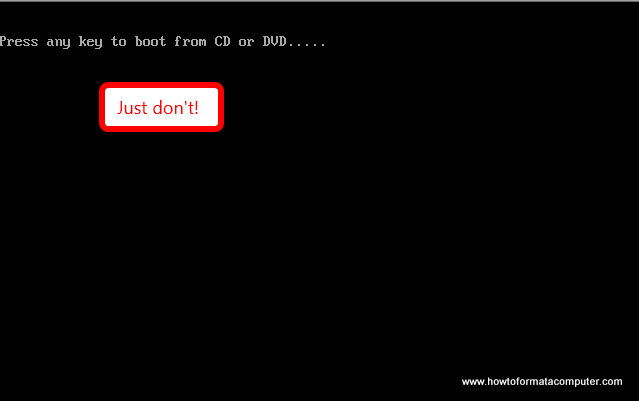
Install Windows 7 - Setup Restarts

Install Windows 7 - Dont press anything this time

Install Windows 7 - Dont press anything this time
Windows will continue booting and installing, almost there!
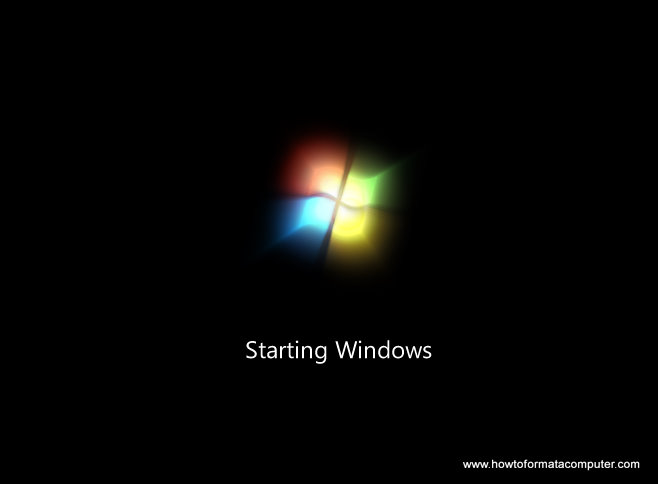
Install Windows 7 - Windows starts to load
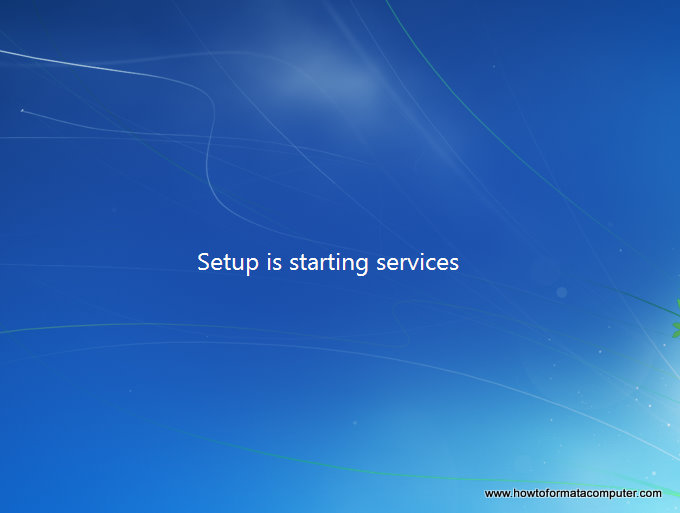
Install Windows 7 - Windows starts to load

Install Windows 7 - and loads and loads

Install Windows 7 - loading...

Install Windows 7 - Completing Installation
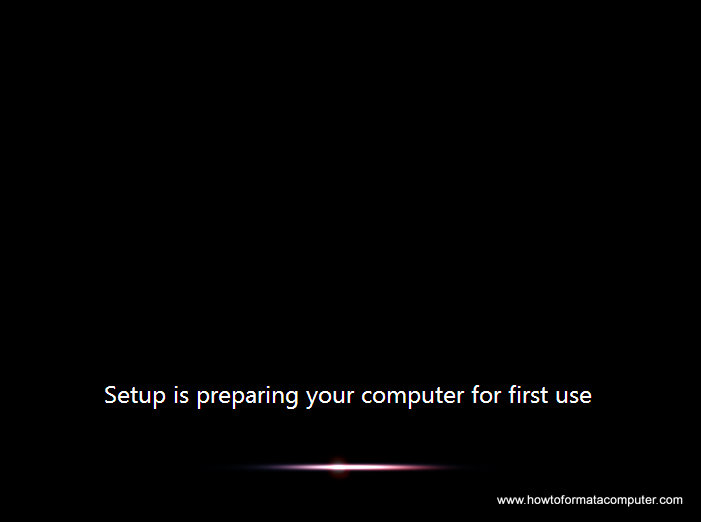
Install Windows 7 - Completing Installation

Install Windows 7 - Setup is preparing your computer for first use

Install Windows 7 - Setup is preparing your computer for first use
Finally!
Insert your name (this will be your windows username)
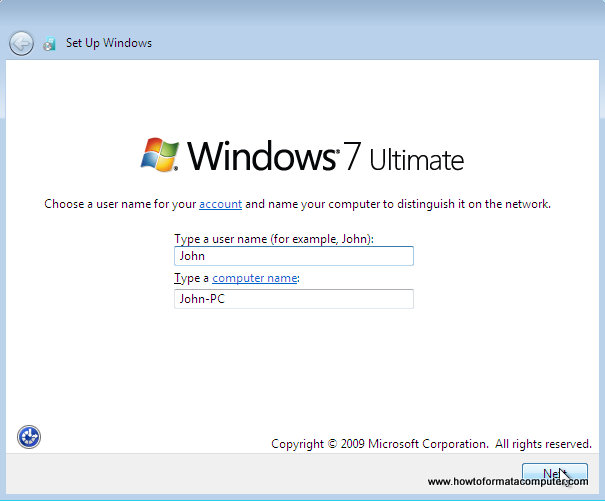
Install Windows 7 - Type a username

Install Windows 7 - Type a username
If you want to, insert password for your computer. ( Hey….you won’t forget it, right? :) )
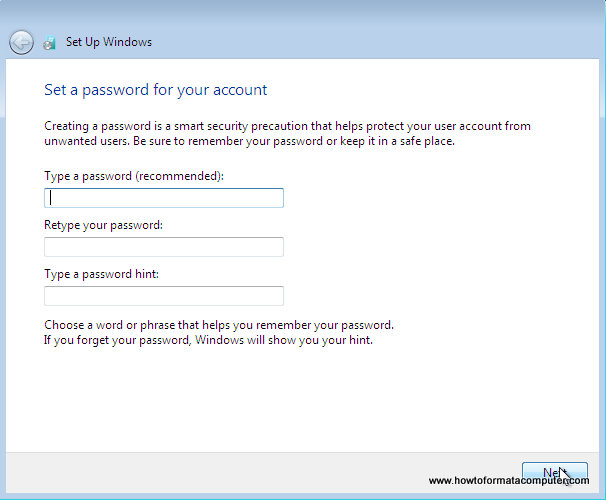
Install Windows 7 - Type a password

Install Windows 7 - Type a password
Insert your Windows 7 product key and press Next
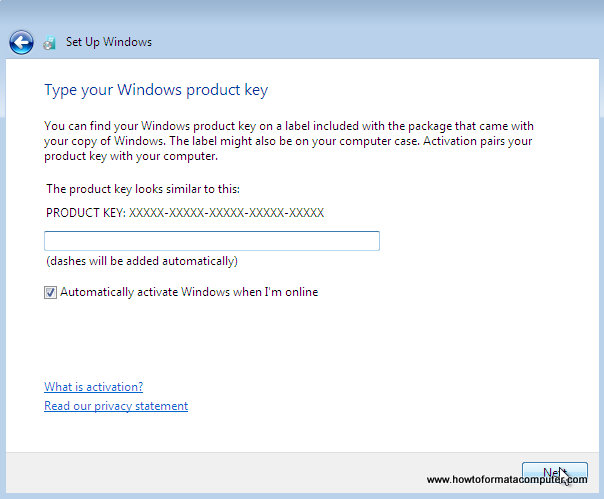
Install Windows 7 - Type your windows product key

Install Windows 7 - Type your windows product key
Do you want Microsoft Updates for your new operating system? It is highly recommend you know…! Select use recommended settings
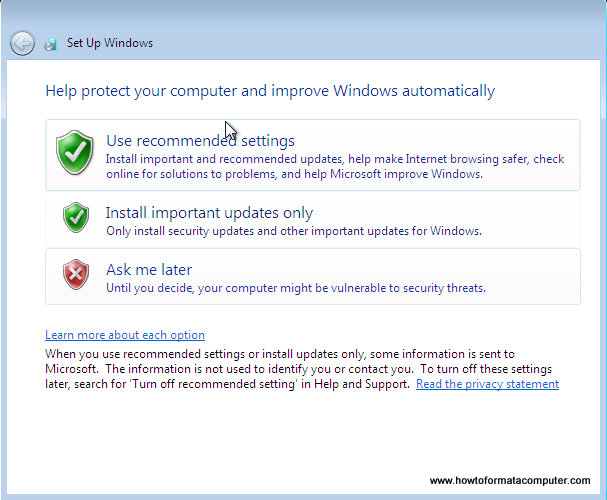
Install Windows 7 - Use Recommended Settings

Install Windows 7 - Use Recommended Settings
It’s time for Time zone, select yours from the drop down menu
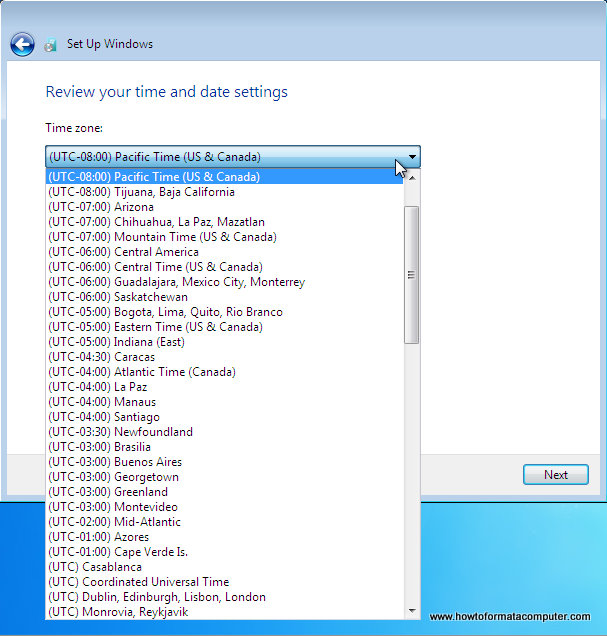
Install Windows 7 - Review your time and date settings

Install Windows 7 - Review your time and date settings
Depending on your location, select the appropriate network location.
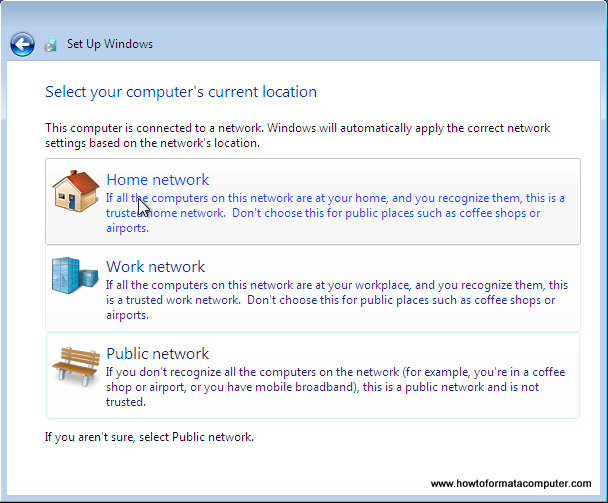
Install Windows 7 - Computer location select network

Install Windows 7 - Computer location select network
If you have more than 1 computer, type homegroup password for sharing files. Make sure to remember it
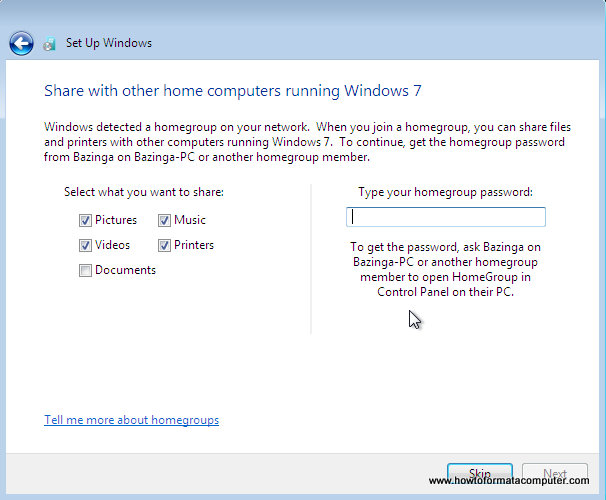
Install Windows 7 - Type homegroup password

Install Windows 7 - Type homegroup password
Windows is finalizing your settings
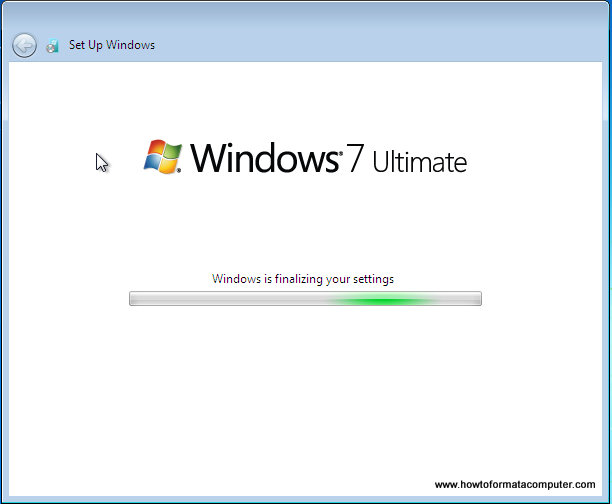
Install Windows 7 - Windows is finalizing your settings
Install Windows 7 - Windows is finalizing your settings


Install Windows 7 - Welcome screen
That’s it. Now insert your computer manufacturer drivers CD and install drivers. Also FYI, Windows 7 has great driver support, go to Start –> Control Panel –> Select View By = Small Icons –> Click Windows Update
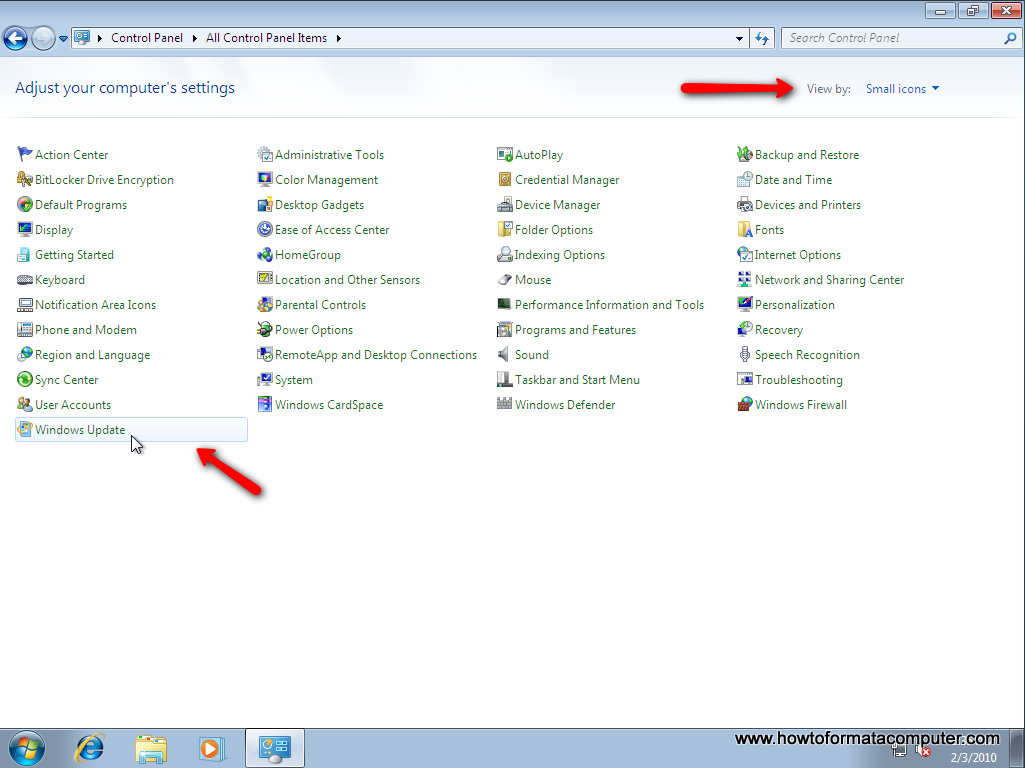
Install Windows 7 - Windows Update

Install Windows 7 - Windows Update
Check for updates and click on optional updates, to see which drivers windows 7 found for your computer automatically.

Wednesday, March 23, 2011

PROTECTION AND SECURITY

Security

Security software is available in many forms. For users who intend to surf the Internet, antivirus software is the basic software should be owned. This antivirus software will scan every file sent and received from the internet to check the probability of a virus. Two major antivirus software suppliers are Norton and McAfee. both the supplier has a good reputation in the international market. To remain effective, antivirus software should be updated often because many viruses are created every day. The virus enters the operating system when it successfully invades undetected.

Protection

Addition of firewall system is a personal choice. This system will provide another layer of added protection when users on the Internet. Each program must obtain permission from the firewall to the computer to send and receive any information that comes from the Internet. Computer firewall can be modified, allowing users to allow any program that they can trust. For programs that do not know the origin, Firewall will block any action by any of these programs to seek permission from the user.

Protection and security concept.

Protection concepts

The aim of the concept of computer virus protection is to create suitable safeguards with which the occurrence of computer viruses in the IT systems of an organisation can be prevented or detected as early as possible. In this way, countermeasures can be taken and possible damage can be minimised. In the protection against computer viruses it is essential that the safeguards are consistently adhered to and that technical countermeasures are constantly updated. This requirement is due to the continual occurrence of new computer viruses or variants of viruses. The development of operating systems, programming languages and application software may also provide opportunities for computer viruses to attack. This should therefore be taken into account and suitable countermeasures should be taken.


Security concepts


Certain concepts recur throughout different fields of security:
Assurance - assurance is the level of guarantee that a security system will behave as expected
Countermeasure - a countermeasure is a way to stop a threat from triggering a risk event
Defense in depth - never rely on one single security measure alone
Exploit - a vulnerability that has been triggered by a threat - a risk of 1.0 (100%)
Risk - a risk is a possible event which could cause a loss
Threat - a threat is a method of triggering a risk event that is dangerous
Vulnerability - a weakness in a target that can potentially be exploited by a threat security


Security in computer system

• security is an enternal operating systems problem-providing controlled access to programs and data stored in the computer
• security is mainly focused on malicious behavior of entities external to the system,affecting computer assets:

 software.
ü

 data
ü
 Hardware
ü


Software mechanism
A compatibility mode is a software mechanism in which a computer's operating system emulates an older processor, operating system, and/or hardware platform in order to allow obsolete software to remain compatible with the computer's newer hardware or software.

Hardware mechanisms that protect computers and data

Hardware based or assisted computer security offers an alternative to software-only computer security. Devices such as dongles may be considered more secure due to the physical access required in order to be compromised.

Security Policy

A computer security policy defines the objectives and elements of computer system organization. This definition is very formal or regular informal. Security policy enforced by organizational policy or security mechanisms. A technical implementation of defining what a computer system is not secure or safe.


Elaborate authentic basic.

password

A password is a secret word or string of characters that is used for authentication, to prove identity or gain access to a resource (example: an access code is a type of password). The password should be kept secret from those not allowed access.


Artifact

In natural science and signal processing, an artifact is any error in the perception or representation of any visual or aural information introduced by the involved equipment or technique(s).[1]

In computer science, digital artifacts are anomalies introduced into digital signals as a result of digital processing.

In microscopy, artifacts are sometimes introduced during the processing of samples into slide form. See Artifact (microscopy)


Biometric

Biometrics consists of methods for uniquely recognizing humans based upon one or more intrinsic physical or behavioral traits. In computer science, in particular, biometrics is used as a form of identity access management and access control. It is also used to identify individuals in groups that are under surveillance.

Elaborate protection concept and access control.

• For your PC security suite is now available a variety of programsthat promise more often than full protection from malware, with acontrol virus and malware, but also with some research andcomplex in real time.


• Major challenge for all manufacturers areoffering solutions that are effective yet easy to use, and if you do notrequire excessive resources to the system.

• At the time all the leading manufacturers of security software suitethat provides a guide as well as the traditional functions of malwaredetection and protect your PC also features accessories forprotection of data and optimization of the operating system.

• The concept of security was also extended to the area where thismalware is not in the strict sense. But, in a sense, a proper backupdata fall within the concept of security
 
DOS ( DISK OPERATING SYSTEM )
Verview of Disk Operating System
  •   Disk operating system is one of the premier operating systems used in computer programming. The abbreviated form, DOS, is more popular among the computer users across the globe. The disk operating system is designed to offer all-round support to the secondary storage devices of computer system

  •  The main function of disk operating system is to coordinate the user and outside devices used in computer system. While operating a computer, user enters some commands. Disk operating system converts these commands into a version which is readable by computer memory. DOS also converts the error messages generated by computers into an understandable format.

  •  If the disk operating system is loaded out of a disk and employed in supporting disk related devices of computer, then it takes control of the whole operating system. FreeDOS, DOS/360 are some of the examples of disk operating systems, which serve the purpose of the overall operating system.
 
COMPUTER FILES IN DOS
A file may contain a program or any other kind of information. Generally, a file must be given a name that can be used to identify it.
DOS permits the user to assign a name consisting of two parts to a file - primary and secondary names.

File System Management

File systems and operating systems Most operating systems provide a file system, as a file system is an integral part of any modern operating system. Early microcomputer operating systems' only real task was file management — a fact reflected in their names (see DOS). Some early operating systems had a separate component for handling file systems which was called a disk operating system. On some microcomputers, the disk operating system was loaded separately from the rest of the operating system. On early operating systems, there was usually support for only one, native, unnamed file system; for example, CP/M supports only its own file system, which might be called "CP/M file system" if needed, but which didn't bear any official name at all.

Because of this, there needs to be an interface provided by the operating system software between the user and the file system. This interface can be textual (such as provided by a command line interface, such as the Unix shell, or OpenVMS DCL) or graphical (such as provided by a graphical user interface, such as file browsers). If graphical, the metaphor of the folder, containing documents, other files, and nested folders is often used (see also: directory and folder).

Sharing fileFile sharing is the practice of distributing or providing access to digitally stored information, such as computer programs, multi-media (audio, video), documents, or electronic books. It may be implemented through a variety of ways. Storage, transmission, and distribution models are common methods of file sharing incorporate manual sharing using removable media, centralized computer file server installations on computer networks, World Wide Web-based hyperlinked documents, and the use of distributed peer-to-peer networking (see peer-to-peer file sharing).

peer-to-peer file sharing

Users can use software that connects in to a peer-to-peer network to search for shared files on the computers of other users (i.e. peers) connected to the network. Files of interest can then be downloaded directly from other users on the network. Typically, large files are broken down into smaller chunks, which may be obtained from multiple peers and then reassembled by the downloader. This is done while the peer is simultaneously uploading the chunks it already has to other peers.


File map

MAP files are a type of debugging symbol.
These are typically plain text files that indicate the relative offsets of functions for a given version of a compiled binary.
Image Maps Another Form of the .MAP file is for HTML image maps. An image map is formatted in HTML and creates click-able areas over an provided image.
Block index

Index locking is a technique utilized to maintain index integrity. A portion of an index is locked during a database transaction when this portion is being accesses by the transaction as a result of attempt to access related user data. Also special database system's transactions (not user invoked transactions) may be invoked to maintain and modify an index, as part of a system's self-maintenance activities. When a portion of index is locked by a transaction, other transactions may be blocked from accessing this index portion (blocked from modifying, and even from reading it, depending on lock type and needed operation).

Specialized concurrency control techniques exist for accessing indexes. These techniques depend on the index type, and take advantage of its structure. They are typically much more effective than applying to indexes common concurrency control methods applied to user data. Notable and have been widely researched are specialized techniques for B-trees (B-Tree concurrency control which are regularly utilized as database indexes.

Index locks are used to coordinate threads accessing indexes concurrently, and typically shorter-lived than the common transaction locks on user data. Often they are called in the professional literature latches.


Input Output Management

Management Data Input/Output, or MDIO, is a serial bus defined for the Ethernet IEEE 802.3 specification for Media Independent Interface, or MII. The MII connects Media Access Control (MAC) devices with physical bus interface, or PHY, circuits. The MII comprises:

A data interface to the Ethernet link and a management interface, referred as MDIO or as Media Independent Interface Management (MIIM).
The MDIO bus provides access to the configuration & status registers of each PHY. These registers are used to initially configure each PHY and also to monitor status during operation


Buffering  a buffer is a region of memory used to temporarily hold data while it is being moved from one place to another. Typically, the data is stored in a buffer as it is retrieved from an input device (such as a Mouse) or just before it is sent to an output device (such as Speakers). However, a buffer may be used when moving data between processes within a computer. This is comparable to buffers in telecommunication. Buffers can be implemented in either hardware or software, but the vast majority of buffers are implemented in software. Buffers are typically used when there is a difference between the rate at which data is received and the rate at which it can be processed, or in the case that these rates are variable, for example in a printer spooler or in online video streaming.

A buffer often adjusts timing by implementing a queue (or FIFO) algorithm in memory, simultaneously writing data into the queue at one rate and reading it at another rate.

Memory management

Memory management is the act of managing computer memory. In its simpler forms, this involves providing ways to allocate portions of memory to programs at their request, and freeing it for reuse when no longer needed. The management of main memory is critical to the computer system.

Virtual memory systems separate the memory addresses used by a process from actual physical addresses, allowing separation of processes and increasing the effectively available amount of RAM using disk swapping. The quality of the virtual memory manager can have a big impact on overall system performance.


Garbage collection is the automated allocation and deallocation of computer memory resources for a program. This is generally implemented at the programming language level and is in opposition to manual memory management, the explicit allocation and deallocation of computer memory resources. Region-based memory management is an efficient variant of explicit memory management that can deallocate large groups of objects simultaneously.

Memory management systems on multi-tasking operating systems usually deal with the following issues.
RelocationIn systems with virtual memory, programs in memory must be able to reside in different parts of the memory at different times. This is because when the program is swapped back into memory after being swapped out for a while it can not always be placed in the same location. The virtual memory management unit must also deal with concurrency. Memory management in the operating system should therefore be able to relocate programs in memory and handle memory references and addresses in the code of the program so that they always point to the right location in memory.


ProtectionMain article: Memory protection
 Processes should not be able to reference the memory for another process without permission. This is called memory protection, and prevents malicious or malfunctioning code in one program from interfering with the operation of other running programs.

SharingMain article: Shared memory

 Even though the memory for different processes is normally protected from each other, different processes sometimes need to be able to share information and therefore access the same part of memory. Shared memory is one of the fastest techniques for Inter-process communication.

Logical organizationPrograms

 are often organized in modules. Some of these modules could be shared between different programs, some are read only and some contain data that can be modified. The memory management is responsible for handling this logical organization that is different from the physical linear address space. One way to arrange this organization is segmentation.

Physical OrganizationMemory

 is usually divided into fast primary storage and slow secondary storage. Memory management in the operating system handles moving information between these two levels of memory.